
When CPU resources are reached a website will become slow. How does this happen, what causes CPU resources to become exhausted and how can you address this problem?
It’s a bit go a lengthy explanation and it involves understanding other related concepts, but I’ll try and explain all in this blog post.
What is a CPU?
CPU stands for central processing unit. It’s the “brain” of any computer. The part that does the maths, if you’d like to think of it like that. It noves data around, makes decisions (logic operations) and controls program flow.
A computer is built around 3 core components:
- Storage: This is used for permanent data storage, and the retrieval of permanently stored data. Files, applications, and the operating system are stored here permanently (until deleted).
- RAM: Random access memory. This is temporary working memory. When programs run, they load data into RAM so it can be accessed quickly. RAM is volatile, meaning its contents are lost when the computer is powered off.
- CPU: The CPU is what’s used to do the computations when programs are run. The CPU executes instructions from programs. It performs calculations, processes logic, moves data, and controls how software runs. Whenever code is executed, the CPU is doing the work.
Why is CPU limited in Shared Hosting?
CPU is limited EVERYWHERE!
Even the most powerful computer in the world has a limit on its processing power (it’s just really huge).
Although shared hosting servers are pretty powerful, they also contain lots of users. There’s always a cost Vs profit factor when you’re running shared hosting. As much as we’d like to give everyone stack of CPU, doing so, at some point, becomes financially unviable.
Hosting providers also have to take into account that one user’s website shouldn’t affect what another users website. We have to avoid this conversation before it happens:
Customer: Why is my site down?
Hosting provider: Well, there’s this other customer on the same server as you, and they’ve used all the CPU, so there isn’t any left for your website.
Customer: Thanks for letting me know, I think I’ll host somewhere else.
While it is possible to obtain more CPU resources by upgrading, this isn’t some kind of capitalist upsell to make more money (well, not at Netnerd.com it’s not – I can’t speak for ALL providers).
Paying more to obtain more CPU resources is fairly normal (even PC World does this).
Having a predefined upgrade path, that provides specific amounts of CPU allows hosting providers to manage the cost Vs profit factor inline with providing more resources. Operating in this manner simply allows hosting providers to continue to operate as opposed to wondering why they’re not financially viable.
Why Reaching a CPU Limit Causes a Slow Website.
When you reach the CPU limit of your account, any subsequent processor jobs queue. Anything jobs in the queue have to wait for previous jobs to complete before the queued job can be processed.
This isn’t something that’s specific to web hosting, pretty much anything that has a CPU works in this manner.
You can see the same effect on your computer. If you open too many windows or programs and your computer slows down and you can hear the processor cooling fan going nuts, you’ve exhausted the CPU of your computer. The slow in this context is also caused by CPU jobs queuing. It’s roughly the same If you try and plat a game with a lot of 3D graphics that needs more power than your computer provides. The jerkiness you experience when playing the game is due to CPU jobs queuing… well it’s probably GPU jobs queuing because it’s graphics, but it’s along the same lines.
If you’ve reached the CPU limit of your hosing account, there are likely to be more jobs being added to the queue as time goes on. This equates to a prolonged period of CPU exhaustion and the site is slow during this period. As it’s people visiting your website that cause code to be executed and jobs to queue, it tends to only be when traffic subsides that CPU usage, and queued jobs decrease.
How Does A Website Use CPU?
I’m going to have to explain a little bit about HTTP, and a lot about how database backed CMS (such as WordPress) function for this to make sense. Although some of this might seem unrelated to start with, it does all fit together, honest!
HTTP POST and HTTP GET.
There’s not a persistent connection between a web browser and a website. Web servers operate on a GET and POST basis.
When you request a web page, your computer is sending an HTTP GET request to a website. The website and web server, between them (more on that later), serve the page.
The page’s HTML and assets (images, CSS and JS) are all then downloaded, and the browser then renders them into the page you see, post download.
While you then read the page, there’s not any interaction between your browser and the site. OK, I’ll admit there can be interaction (JS), but for the purposes of this post and the explanation, this is minimal and doesn’t happen much.
If you fill out some kind of form on a website (be that a contact form, or entering your card details) you’re not entering these on the website; you’re entering them into your browser. The information that you enter isn’t sent to the browser until you click the button (send, submit, pay now etc).
When you click the button an HTTP POST is made. This POST is the information you’ve entered into your browser being sent to the web server and website.
The key point is that it’s HTTP GETs and HTTP POSTs that make your browser interact with your website.
The effect of HTTP GETs vary between websites.
If you have a flat HTML website, HTTP GETs mostly consist of getting something that already exists. The browser is effectively asking to GET the index.html and the assets (images, CSS and JS) defined in the HTML. All these resources already exist in this context so it’s a bit like this:
Browser: Can I have this thing?
Web server: Here is the thing you asked for.
Due to this flat HTML websites have a very minimal overhead. There isn’t really much CPU usage, simply because there isn’t any execution of code specific to the website.
Wait a minute, HTML isn’t code?
That’s right, HTML isn’t code. It’s script. The difference between the two is that code has logic processing (if this happens do that), whereas HTML doesn’t have logical execution (here’s a bunch of formatting information).
Due to the above, you need CPU in your hosting to run a code (usually PHP) based website, where as when you’re operating an HTML based website, the CPU is more used by the web server (when it serves your HTML) and the browser (when it renders the HTML in to the page you see).
This gets a bit confusing because PHP based sites ALSO serve HTML, but they do this by executing code in your hosting account to GENERATE the HTML, rather than the HTML being already being present in the .html files that make up your website’s pages.
Therefore, you need more CPU just by running a PHP based database backed CMS (such as WordPress, Joomla or Drupal), than you do compared to operating a flat HTML site, simply because the site is made using PHP which generates HTML.
How PHP Works in the Hosting.
All programs ultimately execute as machine code. Machine code consists of binary instructions (0s and 1s) that the CPU understands directly. Writing software directly in binary would be extremely difficult, so developers don’t do that.
Instead, programs are written in higher-level programming languages such as C, C++, Python, PHP, .NET, Go, and Java.
Some languages, like C and C++, are compiled. Compiling is the process of converting human-written source code into machine code ahead of time. You write the code, compile it, and the result is a binary executable file containing machine instructions. When you run that file, the CPU executes those instructions directly.
Other languages use a runtime environment. Instead of compiling straight to machine code, the source code is first converted into an intermediate form (often called bytecode). That bytecode is then executed by a virtual machine or runtime engine, which may translate it into machine code during execution using techniques such as Just-In-Time (JIT) compilation.
PHP, Python, and .NET fall into this category. They rely on a runtime system to execute code rather than producing a standalone native binary in the traditional sense.
Since this blog post is discussing PHP-based, database-backed CMS platforms, we’re operating in this runtime/interpreted environment rather than the traditional compiled model.
In our hosting environment, we have… stuff… that… does… that.
If you’re using WordPress and you look inside your hosting account, you’ll see lots of .php files. You can open them and read them, and you’ll see words, variables, functions (not 0s and 1s).
At the top of a PHP file, you’ll usually see this:
<?phpThat line doesn’t “run” PHP by itself. Instead, it tells the PHP engine: “The following content is PHP code.”
When someone VISITS YOUR WEBSITE, the web server hands the .php file to the PHP runtime (usually PHP-FPM or lsphp/mod_lsapi). The PHP engine then:
- Parses the file
- Compiles it into bytecode (an intermediate form)
- Executes that bytecode
- Generates output (usually HTML)
- Sends that output back to the visitor’s browser
So while you see readable code in the file, what actually runs is compiled bytecode that the CPU can process.
OPcache
We run OPcache as part of the PHP environment.
Normally, every time a PHP file is requested, PHP would:
- Read the file
- Parse it
- Compile it into bytecode
- Execute it
That compilation step costs CPU time.
OPcache stores the compiled bytecode in RAM. So instead of recompiling the same file on every request, PHP can just grab the precompiled bytecode from memory and execute it immediately.
This significantly reduces CPU usage and speeds up PHP execution, especially for applications like WordPress where the same core files are executed over and over again.
Why did I write this?: When someone VISITS YOUR WEBSITE
It’s when someone visits your website that all of the above actually happens.
PHP isn’t like a program that runs constantly in the background. WordPress doesn’t sit there permanently “running” on the server waiting to do things.
Instead, PHP runs on demand.
When someone requests a page on your website the web server receives that request and passes it to PHP (usually via PHP-FPM or lsphp/mod_lsapi).
At that point:
- PHP loads the required WordPress files
- The code is parsed (or pulled from OPcache)
- WordPress boots up
- Database queries are made
- The page is assembled
- HTML is generated
- The response is sent back to the browser
- Then it all stops.
The next visitor triggers the entire process again.
So WordPress isn’t a constantly running application; it’s more like a machine that switches on, builds a page, and switches off again. And every time that happens, CPU is used.
The key point here is that it’s requests made to your website that cause PHP to run.
What Happens in a CMS When a Page is Requested.
The generic version of what takes place when a website is requested is:
- A visitor types a URL into their browser (or clicks a link).
- Their browser sends an HTTP request to the server.
- The server receives the request and passes it to the appropriate handler (for WordPress, that’s PHP).
- PHP executes the CMS code.
- The CMS queries the database.
- The page is assembled.
- HTML is returned to the browser.
- The browser renders the page.
That’s the generic version. I’m going to add some context to this with a CMS specific explanation, and I’m going to use WordPress to do this, because it’s so widely used, and also how you use it can affect how much CPU resources are used.
What Happens in a CMS When a Page is Requested in WordPress.
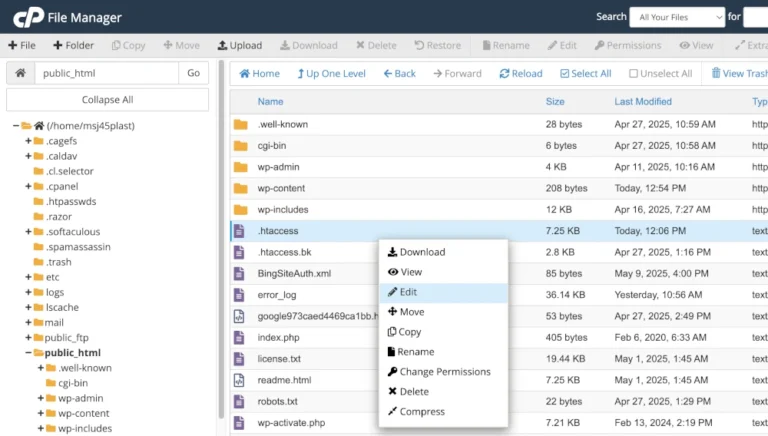
If you’re familiar with WordPress, you might have seen this in your site’s .htaccess file:
# BEGIN WordPress
<IfModule mod_rewrite.c>
RewriteEngine On
RewriteBase /
RewriteRule ^index\.php$ - [L]
RewriteCond %{REQUEST_FILENAME} !-f
RewriteCond %{REQUEST_FILENAME} !-d
RewriteRule . /index.php [L]
</IfModule>
# END WordPress
These are WordPress’ rewrite rules. What they do is rewrite ALL requests to the index.php file in your domain’s document root (public_html by default on cPanel for single domain setups).
That’s right, even if you request this:
https://www.domain.com/address-of-page
The request is internally rewritten to:
https://www.domain.com/index.php
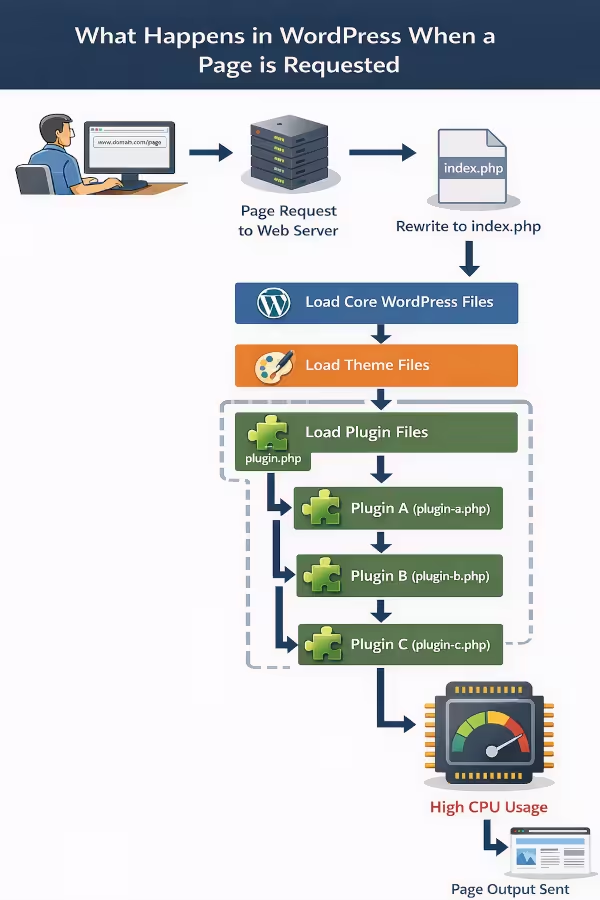
The index.php file then calls wp-blog-header.php (usually in the last line). That file, in turn, loads:
- WordPress core files
- The active theme files
- All active plugins
…and these files often call other PHP files, creating a cascade effect of PHP code execution on every page load.
Why This Matters for CPU
Every page request causes ALL of WordPress to be loaded and executed. The PHP interpreter parses and executes all of this code, runs the logic in your plugins and theme, and queries the database.
This is why:
WordPress uses CPU on a per-request basis
More plugins, heavier themes, or complex database queries = more CPU per page load
Even seemingly simple pages still trigger the full WordPress environment
Understanding this is key to explaining why page requests, traffic spikes, or poorly optimised plugins can dramatically increase CPU usage.
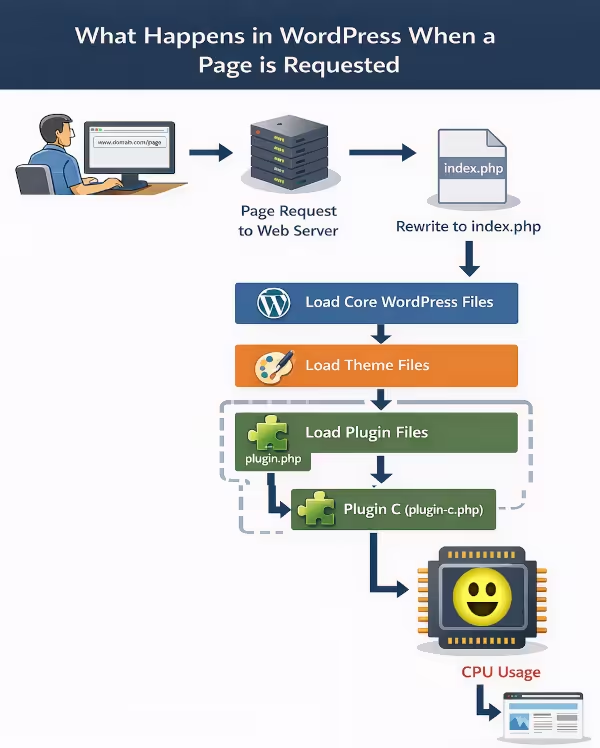
Reducing plugin count can help turn this:
Into this:
Code Overhead and Visitors
Remember that earlier I said this?:
When someone VISITS YOUR WEBSITE, the web server hands the .php file to the PHP runtime (usually PHP-FPM or lsphp/mod_lsapi).
What this means is that it’s when someone visits your website that your code executes. You now know what’s involved in this from reading the sections above: WordPress core files, theme files, plugin files, database queries, all of it runs for each request.
Every Visitor Costs CPU.
Each new visitor triggers the entire WordPress environment:
- The PHP interpreter has to load and execute code.
- Database queries are executed to fetch posts, menus, settings, and plugin data.
- Plugins add their own logic and processing on top of that.
- The page is assembled into HTML and sent back to the browser.
Even though your server might handle a few visitors with ease, every visitor adds code overhead, and that overhead is directly proportional to CPU usage.
But My Website Isn’t Busy, I Don’t Get Many Visitors.
How are you quantifying that?
Most people use something like Google Analytics to track visitors, or to see how many people visit their website.
Google knows that you want to know about real people, and not bots, so they try and filter our bots requesting pages of your website. They do this, so that you get some value from the statistics their tools provided.
Let’s face it, if we were interested ALL visitors we’d still be using hit counters and congratulating ourselves about getting 127,936 visitors this month. The thing is, that 127,921 of those visitors were bots and not people.
That’s why Google Analytics tries to filter out bot traffic.
The thing is that a bot visiting your site still causes PHP to execute, all your plugins to load, your theme to be invoked and so on. Because you’re using Google Analytics you don’t see this bot traffic, so it looks like your site has high CPU usage and only a small amount of visitors. There are visitors, they are causing your CPU to get used, you just don’t “see” them because the tool you’re using has decided you don’t want to know about that particular type of visitor.
In terms of CPU usage, any visitor (either a human or a bot) has some CPU overhead… even if you’re reporting tool isn’t telling you about ALL visitors.
Maybe think of it like this:
If your site wasn’t getting any visitors, your site’s code wouldn’t be executing, and there would be no CPU usage.
Checking that CPU is 100 percent.
If you’re using web hosting at netnerd.com there’s a “Resource Usage” facility in your cPanel, you click this:

You click details:

From the timeframe, select a date range to see historical CPU usage:
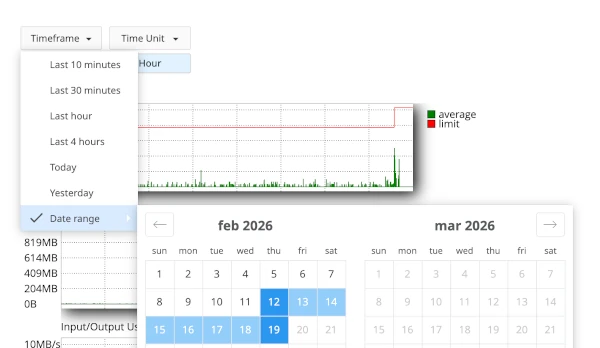
You’ll see a graph that looks like this If the CPU limit of your account has been reached in the selected time period. If you see lots of light blue lines on the graph these are “faults” and a fault happens when your account’s CPU limit is reached.
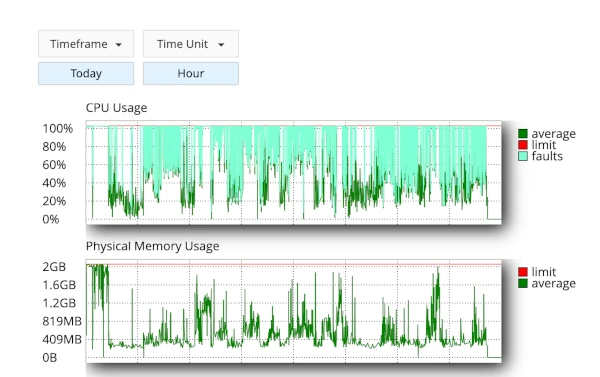
If you see lots of faults, this means your site is frequently soling down due to the CPU limit of your hosting account being reached.
How to Address Site is Slow and CPU is 100 Percent.
Maths! That’s how!
Let’s say your CPU availability is 100.
The rough sum of CPU usage is:
Number of Visitors x overhead of entires site’s codebase = CPU usage
If CPU usage = more than 100, then you’ve exceeded your hosting account’s CPU availability and your site will be slow. You’ve literally got a choice of:
- Less Visitors, or
- Less overhead of code, or
- More CPU
More CPU
As I’ve mentioned above, you can get more CPU resources by upgrading.
Less Visitors
When it comes to less visitors, it’s unlikely that you’ll be able to block visitors just by blocking individual IP addresses as there are ways of negating this kind of block. You can use country blocking if you’re using a CDN, and some CDN’s such as cloudflare offer traffic filtering facilities that might help.
Less overhead of code
This is very much an “inside your CMS” effort, and you’re looking at either reducing your site’s codebase, or deploying some effective caching or a combination of the two.
Less Visitors
When it comes to less visitors, it’s unlikely that you’ll be able to block visitors just by blocking individual IP addresses as there are ways of negating this kind of block. You can use country blocking if you’re using a CDN, and some CDN’s such as cloudflare offer traffic filtering facilities that might help.
Less overhead of code
This is very much an “inside your CMS” effort, and you’re looking at either reducing your site’s codebase, or deploying some effective caching or a combination of the two.
Less overhead of code
This is very much an “inside your CMS” effort, and you’re looking at either reducing your site’s codebase, or deploying some effective caching or a combination of the two.
Reducing Code Overhead in WordPress
The main thing to bear in mind is that not all plugins are created equal, and not all plugins cause overhead all of the time.
Some plugins are inherently heavier than others. Some only consume significant resources under specific conditions.
Example: Image Optimisation Plugins
Take image optimisation plugins such as Smush, Converter for Media, or CompressX.
If you configure these to optimise images upon upload, then every time you upload an image, CPU usage will increase. That’s because the plugin is actively processing the file — converting a PNG into WebP or AVIF, resizing it, stripping metadata, and generating multiple image sizes.
That processing requires:
- CPU cycles
- Memory allocation
- Disk I/O
However, this overhead usually occurs at upload time, not on every page load.
Example: WooCommerce
WooCommerce is a very different case. If not configured correctly, it can introduce significant overhead especially on larger stores.
Two important performance improvements are:
HPOS (High-Performance Order Storage)
HPOS moves WooCommerce order data out of the wp_posts and wp_postmeta tables into dedicated WooCommerce tables.
Why does this matter?
The posts and postmeta tables are heavily used during normal page generation. When WooCommerce order data lives there too, page loads can involve large, inefficient queries across data that isn’t even needed for the current request.
By separating order data into dedicated tables:
- Page-related queries become lighter
- WooCommerce-specific queries become more efficient
- Overall database load decreases
This reduces unnecessary CPU usage during normal page requests.
Object Caching
WooCommerce sometimes stores transients in the wp_options table.
The options table is loaded on every page request. If it becomes bloated with transient data, every page load carries unnecessary overhead.
When object caching is enabled:
- Transients are stored in memory (e.g., Redis or Memcached)
- They are not loaded from the database on every request
- Database queries decrease
- CPU usage drops
Effectively, this moves data from an “every page load” location to a “WooCommerce-only when needed” location.
Why This Gets Complicated
The above are just two examples.
In reality, WordPress performance depends on:
- The number of active plugins
- How those plugins hook into WordPress
- The theme’s complexity
- The volume of database queries
- External API calls
- Cron jobs
- Background processing
- Traffic patterns
There aren’t just dozens of possible combinations.
There are millions.
How Do You Work Out What’s Causing High CPU Usage in WordPress?
That’s the real question.
Because the issue usually isn’t:
“WordPress uses too much CPU.”
It’s:
“Something in this particular stack, under this particular load, is inefficient.”
Understanding how requests trigger execution, how plugins cascade into each other, and how data is queried is the first step.
The next step is measuring.
How to Diagnose High CPU Usage in WordPress for Shared Hosting
On shared web hosting, you don’t have root access, you can’t view system-wide logs, and you can’t inspect MySQL server settings.
But you can still diagnose CPU usage logically.
The key thing to remember: Every time someone visits your website, PHP executes your WordPress code.
If CPU usage is high, one of two things is happening:
- Too many visits
- Each visit is too “expensive” in terms of processing
Let’s break down how to identify which.
Step 1: Check Resource Usage in cPanel
In cPanel (or DirectAdmin / Enhance), look for:
- CPU usage
- Entry Processes
- Physical Memory
- I/O usage
If CPU usage spikes at the same time as:
- Entry processes → you likely have traffic spikes.
- I/O → something is reading/writing files heavily.
- Memory → a plugin may be loading too much data.
If CPU is high but traffic is low, you likely have inefficient code executing.
Step 2: Check Access Logs (Traffic vs Execution)
Inside cPanel > Metrics > Raw Access Logs
Download today’s log and check:
- Is there a sudden spike in hits?
- Are bots hammering wp-login.php?
- Is xmlrpc.php being hit repeatedly?
- Is one URL being requested thousands of times?
High traffic alone can cause high CPU, even if your site is perfectly coded.
If bots are involved, consider:
- Blocking abusive IPs
- Using rate limiting
- Enabling a CDN (Cloudflare or QUIC)
Step 3: Install Query Monitor
Even without server access, you can install Query Monitor in WordPress.
This shows:
- Execution time
- Which plugin generated which queries
- HTTP API calls
- PHP errors
Healthy page loads:
- 30–60 queries → normal
- 100+ queries → heavy
- 300+ queries → something is wrong
If one plugin accounts for a large percentage of queries, that’s your suspect.
Step 4: Look at WP-Cron Activity
On shared hosting, WordPress cron runs on page visits.
That means:
Every visitor triggers a check for scheduled tasks.
If tasks are due, they run during that visit.
Examples:
- WooCommerce stock updates
- Backup plugins
- Image optimisation
- Email queue processing
- SEO indexing
- Security scans
If CPU spikes every few minutes, this is often cron.
You can:
- Disable WP-Cron in wp-config.php
- Set a real cron job in cPanel (every 5 minutes)
That stops background tasks from running during user visits.
Step 5: Consider WooCommerce Carefully
WooCommerce increases CPU load because:
- It performs cart/session lookups
- It queries order data
- It stores transients
- It checks stock and pricing logic
To reduce WooCommerce overhead:
- Enable HPOS (High Performance Order Storage)
- Use object caching if available
- Avoid excessive dynamic widgets (related products, live filters, etc.)
- Don’t use poorly coded reporting plugins
Remember: WooCommerce pages are dynamic, so they often bypass page cache.
Step 6: Check Caching
If you don’t have page caching enabled, every single visitor runs the full WordPress cascade.
That means:
.htaccess → index.php → wp-blog-header.php → core → theme → plugins → database queries → output
Without caching, even 20 concurrent users can cause CPU issues.
Install:
- A proper page cache plugin
- Or use LiteSpeed Cache if available
- Or use server-level caching if your host provides it
Caching reduces PHP execution dramatically.
Step 7: Disable Plugins Methodically
On shared hosting, the safest way to test:
- Clone the site to staging (if possible)
- Disable one plugin at a time
- Monitor resource usage after each change
- Don’t randomly deactivate everything on live.
Common CPU-heavy plugins:
- Statistics plugins
- Broken link checkers
- Backup plugins running too often
- Real-time search or filtering plugins
- Poorly coded page builders
- Image optimisation running constantly
Step 8: Watch for External API Calls
Some plugins:
- Validate licenses on every load
- Pull remote feeds
- Connect to marketing platforms
- Sync with external CRMs
If those APIs are slow, PHP waits, and while it waits, CPU time accumulates.
Query Monitor will show you slow HTTP requests.
Step 9: Understand the Core Formula
On shared hosting:
CPU usage = (Number of requests) × (Cost per request)
If each page takes 800ms to generate, even moderate traffic becomes expensive.
If each page takes 50ms, the same traffic is fine.
Your goal is to:
- Reduce the cost per request (optimise code)
- Reduce unnecessary requests (cache, block bots)
Shared hosting is designed for:
- Low to moderate traffic
- Efficiently coded sites
- Cached content
If your site is:
- WooCommerce-heavy
- Membership-based
- API-driven
- Or doing real-time filtering/searching
At that point, the issue isn’t “bad hosting”. It’s architecture vs workload, and considering a managed VPS is a good idea.
CPU Exhaustion Can Also Be Caused By Bad Things.
Hacking.
Your site being hacked can cause excessive CPU resource usage. This is because the hack that’s been carried out has injected something that uses CPU into your hosting account. Bitcoin miners are an example of this.
The virus scanner in your cPanel can be used to check for malware, and you might consider making use of our malware cleanup service if you’re unsure how to clean and secure your website.
Card Number Guessing.
If you’re running an e-commerce site and you haven’t actively protected your checkout, it can be used to guess card details. Hackers seek out e-commerce sites that aren’t secured in this manner, then they wrote programs to repeatedly guess card details and point them at your site. Given enough guesses, they’ll correctly guess card numbers using your website as means to do so.
From the perspective of your payment provider, this looks like extremely risky or possibly fraudulent activity.
Typically you’ll either see a lot of failed order notifications or lots of POST requests to your checkout page in your site’s raw access logs if card number guessing is taking place.
The fix here is to protect your checkout with a recaptcha or turnstile.
The reason this activity uses a lot of CPU is because there are a lot of guesses being processed by your site, and your site uses CPU to process each guess.
FAQ: Website is Slow and CPU is 100 percent.
Q1: Why is my website slow when CPU usage reaches 100%?
When your hosting account reaches its CPU limit, the server starts throttling your processes. That means your website cannot execute PHP code fast enough to respond to visitors. Pages take longer to generate, and the site appears slow or unresponsive. In shared hosting, CPU limits are enforced to ensure one account does not affect others.
Q2: What causes CPU usage to become exhausted?
CPU becomes exhausted when the total processing demand exceeds your hosting account’s limit. This usually happens because of high traffic, bot traffic, inefficient plugins or themes, excessive database queries, background cron jobs, WooCommerce activity, or a lack of caching. In simple terms: too many requests, or requests that are too “expensive” to process.
Q3: Does every visitor use CPU resources?
Yes. Every visitor (human or bot) triggers PHP execution in WordPress. WordPress loads core files, your theme, active plugins, and runs database queries on every request unless caching is in place. More visitors mean more CPU usage.
Q4: Why does WordPress use more CPU than a simple HTML website?
A static HTML website serves files that already exist. WordPress generates pages dynamically using PHP and a database. Each page request triggers code execution and database queries before HTML is produced. That generation process requires CPU resources.
Q5: Can bots cause high CPU usage even if analytics show low traffic?
Yes. Many analytics tools filter out bots, so you may not see them in your reports. However, bots still trigger PHP execution when they request pages. This means your CPU usage can be high even if your analytics show only a small number of human visitors.
Q6: How can I check if CPU usage is the reason my site is slow?
In cPanel, use the “Resource Usage” tool. If you see frequent CPU faults or limit hits during the times your site is slow, then CPU exhaustion is likely the cause. These faults indicate your account has reached its CPU limit.
Q7: How can I reduce CPU usage in WordPress?
You can reduce CPU usage by enabling page caching, reducing the number of active plugins, optimising heavy plugins (such as WooCommerce), enabling object caching if available, properly configuring WP-Cron, blocking abusive bots, and optimising database queries.
Q8: Does WooCommerce increase CPU usage?
Yes. WooCommerce adds dynamic functionality such as carts, sessions, stock checks, and order lookups. These require additional database queries and processing. Enabling High Performance Order Storage (HPOS) and object caching can significantly reduce WooCommerce overhead.
Q9: What is the formula for understanding CPU usage?
A simple way to understand it is:
CPU usage = Number of requests × Cost per request
If either traffic increases or each page becomes more resource-intensive, CPU usage rises. If the total exceeds your hosting limit, your website slows down.
Q10: Should I upgrade my hosting if CPU is always at 100%?
If your site is well optimised, caching is enabled, and traffic is legitimate, then you may have outgrown your current hosting plan. Upgrading provides more CPU resources, which allows your website to handle more visitors or more complex functionality. A manages VPS may be a good idea.