WP-CLI is the command line interface for WordPress. Just when you thought it couldn’t get any better, it turns out… IT CAN!
Why click on things when you can do what you need to by typing? This post covers how to install WP-CLI, covers its usage, provides some handy commands and some scenarios when WP-CLI comes in very handy.
Try it, you might like it.
What is WP-CLI?
WP-CLI is WordPress’ command line interface.
You’re most likely familiar with wp-admin and clicking things in there to do things with your WordPress website, such as apply updates, install plugins or install themes.
WP-CLI provides a command line interface that you can use to do these things (and more) by typing, rather than clicking on things.
Why would you want to use WP-CLI rather than wp-admin?
You might find yourself wondering why someone would want to use WP-CLI rather than wp-admin. There are a few reasons why WP-CLI offers an advantage over wp-admin.
Sometimes, it’s just easier to type
You know what you want to do, you know roughly what you’re looking for, but can you find it in wp-admin? Maybe you can, maybe you can’t.
If you know what to type, you can just type it in the WP-CLI, rather than poking around trying to find the thing you need to click on in wp-admin.
Also, it’s often quicker to type.
But how do you know what to type?
Well there’s a WP-CLI handbook which is a good start. Most AI can give you a quick yes or no about what’s possible in WP-CLI, and maybe even give you the required command (checking for hallucination is advisable).
You can still use WP-CLI even if your WordPress is broken
Even if your WordPress is critically erroring due to a bad plugin update, you can use WP-CLI to rollback the plugin version even if wp-admin and/or the site aren’t loading.
You can do this using the following (you’ll need to replace plugin-slug with the actual plugin slug and you’ll have to explicitly provide the version number, rather than using PREVIOUS):
wp plugin install plugin-slug --version=PREVIOUS --forceYou can also use WP-CLI to help clean up hacking
This how to clean a hacked WordPress guide talks about replacing as much of WordPress as you’re able to with known clean versions.
This describes deleting a lot of your WordPress then manually reinstalling it at file level. There’s a lot of deleting, downloading, extracting, and manually replacing of files involved and you need an idea of what exists where at file level to be able to carry out the above.
The equivalent process when using WP-CLI is considerably easier. This is covered in the Using WP-CLI to clean a hacked site section below.
This is all well and good, but you do need to install WP-CLI to be able to use it. Before we get into that, there are some considerations that you need to take into account.
WP-CLI and Multisite hosting
If you have Multisite hosting (this is different from WordPress multisite) you can have multiple domains with different document roots. While WP-CLI is universal to the account as a whole, you might wonder how it differentiate between document roots and domains.
WP-CLI runs relative to the WordPress installation root
When you run WP-CLI in a terminal, it looks for the wp-config.php in the current working directory (or its parents).
That means the document root you’re in determines which WordPress installation WP-CLI talks to.
You can use the
pwdcommand to check which directory you’re currently in (your present working directory) and you can
cd to/document-root/of/domainto move around between directories.
You might need to use the “domains” page of your cPanel to tell which domains are located in which directories.
On a WordPress multisite, the “installation” is the entire network, so there’s one document root one set of core files, one database, one wp-config.php. In the context of a WordPress multisite installation to run commands on a specific site, you use the –url or –blog flag:
# Target by URL
wp plugin list --url=subsite.example.com

# Target by blog ID
wp plugin list --url=example.com --blog=3
Reinstalling core, plugins, or themes in WordPress multisite
When reinstalling WordPress core:
wp core download --force This always downloads the whole installation, because all sites share the same core.
When reinstalling Plugins or Themes, you can target:
# Network-wide plugin reinstall
wp plugin install plugin-slug --force --network
or
# Single site plugin reinstall
wp plugin install plugin-slug --force --url=subsite.example.com
How to install WP-CLI
accounts shell access is usually disabled. If your host operates as we do you’ll need to contact your host requesting that SSH or shell access be enabled for your account.
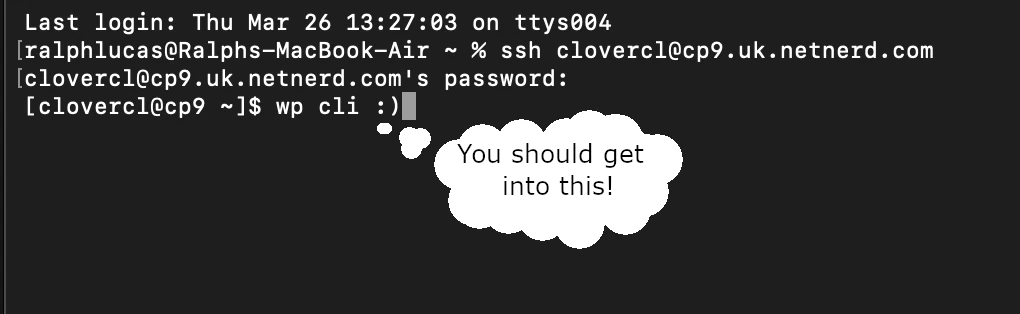
If you’re using cPanel you’ll need to use the cPanel username and password to ssh in to your account.
Step 1: SSH into the account
ssh cpanel-username@yourdomain.comStep 2: Go to your home directory
cd ~Step 3: Download WP-CLI
curl -O https://raw.githubusercontent.com/wp-cli/builds/gh-pages/phar/wp-cli.pharStep 4: Test WP-CLI
php wp-cli.phar --infoIf this works, PHP CLI is fine.
Step 5: Make WP-CLI executable
chmod +x wp-cli.pharStep 6: Put WP-CLI somewhere usable
mkdir -p ~/bin
mv wp-cli.phar ~/bin/wp
Step 7: Add WP-CLI to PATH
Edit:
nano ~/.bashrcAdd this line at the bottom:
export PATH=$HOME/bin:$PATHThen reload:
source ~/.bashrcStep 8: Use WP-CLI
Go to your site (this assumes you have a single domain hosting account, for Multisite hosting you’ll need to check the “Domains” section of your cPanel to identify the correct document root):
cd ~/public_htmlThen get the site URL to check you’re in the right directory:
wp option get siteurlUsing WP-CLI to clean a hacked site
What follows is a guide covering how to use WP-CLI to replace your WordPress core, plugin and theme files with known clean versions.
The deletion mentioned below will delete most of WordPress core, and the subsequent command then reinstalls WordPress core. This delete then reinstall approach helps mitigate additional malicious files being placed inside directories used by WordPress core.
The plugin and theme reinstall doesn’t cover quite as much. While the reinstallation of both mitigates malicious code injected into legitimate files, it doesn’t cover the additional malicious files that could potentially be present. There’s also no clean up specific to the uploads directories.
Due to the above it’s imperative that you scan and then clean, or remove (as applicable) any malicious files that are found. This guide covers cleaning malicious code from files in greater detail.
In addition you’ll need to check for, and remove any malicious users. The wp-cli command to check users is:
wp user listYou might also consider using your site’s .htaccess file to harden your WordPress installation.
On with the cleaning!
Go to your WordPress root:
cd /path/to/public_htmlThen get the site URL to check you’re in the right directory:
wp option get siteurlBackup wp-content and wp-config.php:
tar -czf wp-backup-$(date +%F).tar.gz wp-content wp-config.phpDeactivate all plugins to prevent issues after reinstall:
wp plugin deactivate --allCheck the version of WordPress in use:
wp core versionRemove core directories safely:
rm -rf wp-admin wp-includesForce download fresh WordPress core files (this will install the most recent version, don’t do this if you’ve not been using the most recent version of WordPress):
wp core download --forceOr for a specific version of WordPress to be downloaded and installed (based on your wp core version check, if this is 5.9.3):
wp core download --version=5.9.3 --forceVerify that all core files are intact:
wp core verify-checksumsReactivate plugins:
wp plugin activate --allThat’s replaced WordPress core with a known clean version, so all you’re then left with is cleaning wp-content, which makes the malware clean up job a lot smaller.
You could then use this to reinstall all plugins:
Loop over all active plugins and reinstall:
wp plugin list --field=name | xargs -n1 wp plugin install --forceAlthough do be aware that the above doesn’t take versions into account, and to do do you’d need to use:
wp plugin list --format=csv | tail -n +2 | while IFS=, read -r name status version; do
  echo "Reinstalling $name version $version..."
  wp plugin install "$name" --version="$version" --force
done
And to loop over all themes and reinstall:
Loop over all themes and reinstall:
wp theme list --field=name | xargs -n1 wp theme install --forceAlthough do be aware that the above doesn’t take versions into account, and to do do you’d need to use:
wp theme list --format=csv | tail -n +2 | while IFS=, read -r name status update version; do
  echo "Reinstalling theme $name version $version..."
  wp theme install "$name" --version="$version" --force
done
If you’re regularly applying updates to your WordPress installation you most likely don’t need to use the version specific commands, and instead, you can use the non-version specific commands.
You’ll still need to scan for malware after carrying out the above, as this doesn’t remove any additional files put in place by hackers, it only replaces WordPress Core, plugin and theme files with known clean versions. While this will address malicious code injected into legitimate files, it won’t remove additional malicious files, so you may need to scan for and remove additional malicious files manually.
Although that last sentence is a bit of a let down, the time and effort the above saves is considerable.
Handy WP-CLI commands
There are LOTS of these on the WP-CLI website.
List plugins:
wp plugin listList themes:
wp theme listList users:
wp user listCompare your WordPress core files against the official files for the same WordPress version from WordPress.org. This is good for checking for if your WordPress core has been tampered with:
wp core verify-checksumsLists user roles:
wp role listPreview what would change when moving a site to a new domain:
wp search-replace 'http://oldsite.com' 'http://newsite.com' --dry-runReplace URLs when moving to a new domain:
wp search-replace 'http://oldsite.com' 'http://newsite.com'Flush rewrite rules (useful after adding a new plugin or changing permalink settings):
wp rewrite flushFlush the object cache:
wp cache flushDelete all transients:
wp transient delete --allOpen an interactive database console:
wp db cliInstall and activate a plugin in one step:
wp plugin install better-wp-security --activateWP-CLI References
WordPress WP-CLI developer resources.
Frequently Asked Questions – WP‑CLI
What is WP‑CLI?
WP‑CLI is a command‑line interface for WordPress. It allows you to manage your WordPress site using simple terminal commands instead of the admin dashboard, which can be faster and more efficient for many tasks.
Do I need SSH access to use WP‑CLI?
es. You need SSH access to your server in order to run WP‑CLI commands. WP‑CLI cannot be used through the normal WordPress admin interface.
How do I install WP‑CLI on shared hosting?
You can download the WP‑CLI PHAR file via SSH, make it executable, and add it to your PATH. On cPanel hosting this is often done in your home directory so you don’t need root permissions.
Can I install plugins and themes using WP‑CLI?
Yes. You can install, update, activate, and deactivate plugins and themes via WP‑CLI, for example:
wp plugin install woocommerce --activateCan I roll back a plugin update with WP‑CLI?
Yes, by reinstalling a specific version of the plugin using the:
--versionand
--forceflags. WP‑CLI does not automatically pick the “previous” version, so you need to specify it manually.
What does wp core verify‑checksums do?
It checks your WordPress core files against the official versions from WordPress.org to see if any files have been modified, corrupted, or tampered with.
Can WP‑CLI fix a broken WordPress site?
Often yes, you can use WP‑CLI to deactivate plugins, reinstall core files, and manage themes even if wp‑admin isn’t accessible, as long as the server can still run PHP via SSH.
Does WP‑CLI work with multisite?
Yes, WP‑CLI works for network multisite installations. You can target individual sites using these flags:
--url--blog